

AI Enhance
Sharpen blurry or low-resolution photos
Old photo repair
Photograph an old print with your phone, then let Old photo repair clean up scratches and dust and bring back faded color. Keep the original tones, restore the color, or turn it into a crisp black and white.
Where to find it: Android: lamdep on Google PlayiPhone: Open brAIn on the App Store
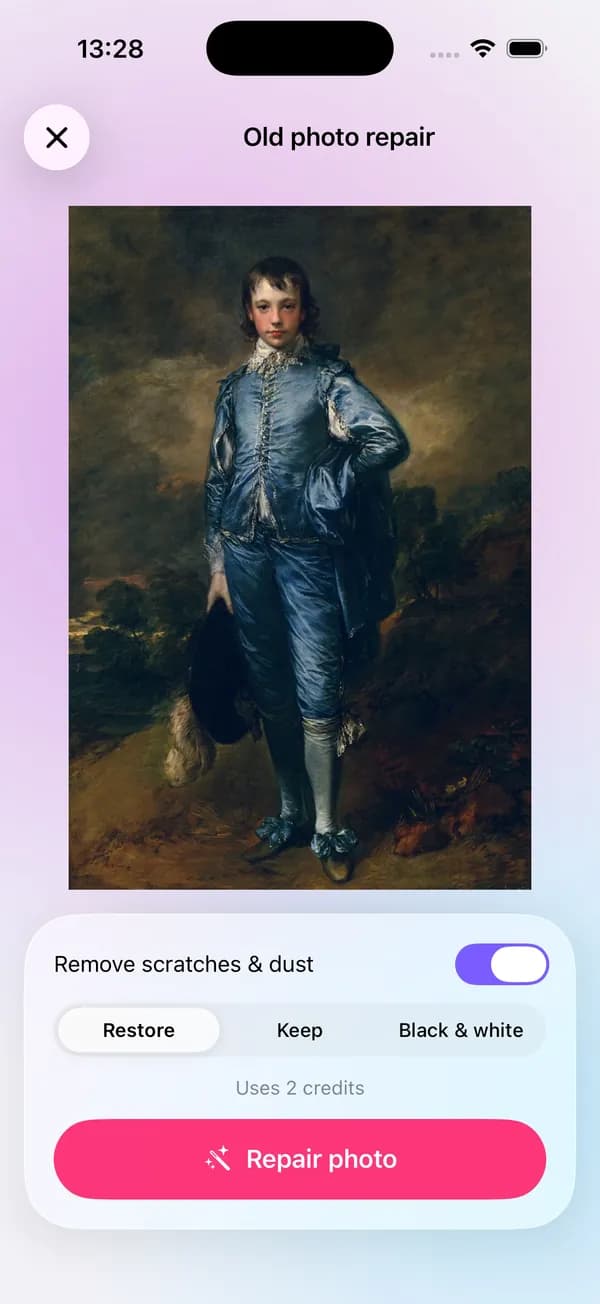
How it works
Take a straight, glare-free photo of the old print, or pick a scan from your phone.
Turn on Remove scratches & dust, then pick Restore, Keep or Black & white for the color.
Tap Repair photo, compare with the original and save the copy you like.
On iPhone (Open brAIn): AI tools › Old photo repair
What you get
Scratches, specks of dust and small creases are filled in to match the photo around them.
Restore brings back faded or yellowed color, Keep leaves the original tones, and Black & white gives a clean monochrome print.
If you agree to cloud AI, Google's Gemini model repairs the photo through lamdep's servers. If you don't, lamdep repairs it on its own servers instead.
The repair is saved as a new copy, so the scan you started from is never changed.
Guide
Take the photo out of its frame or album sleeve, lay it flat near a window and shoot from straight above, so the corners stay square. Daylight from the side avoids the glare a ceiling lamp or the phone's flash leaves on glossy paper.
Fill the frame with the print and hold the phone steady, or use a scanner if you have one. Then repair, and finish with AI Enhance if you want to print the result larger than the original.
Questions
2 credits per photo. Signed-in users get free credits every week, and lamdep Pro adds 60 credits a month. Credits are refunded if a repair fails.
With your consent to cloud AI, Google's Gemini model repairs it through lamdep's servers. Without that consent, lamdep's standard repair runs on lamdep's own servers. You can change your choice in the app's AI data sharing setting.
Old photo repair is made to bring back faded color, not to invent it. For a black-and-white original, choose Black & white or Keep to stay true to it.
The repair aims to keep every person as they were. With heavily damaged faces the AI has to fill in more, so always compare with the original before you share.
Open the result in the editor and use Remover: its heal, clone and dust tools fix what's left by hand, on your phone.
Sharpen blurry or low-resolution photos
Erase people, text and clutter, with optional AI fill
Looks, curves, color grading and masks
Free to download for iPhone and Android. Pro tools and AI credits are optional.