Remove background
Clean cutouts, new colors or blur
Product photos
Pick up to 20 photos of your products. lamdep cuts each one out, centers it on a clean background at the size you choose, adds a soft shadow and saves the whole set in one go.


Where to find it: Android: lamdep on Google PlayiPhone: lamdep on the App Store
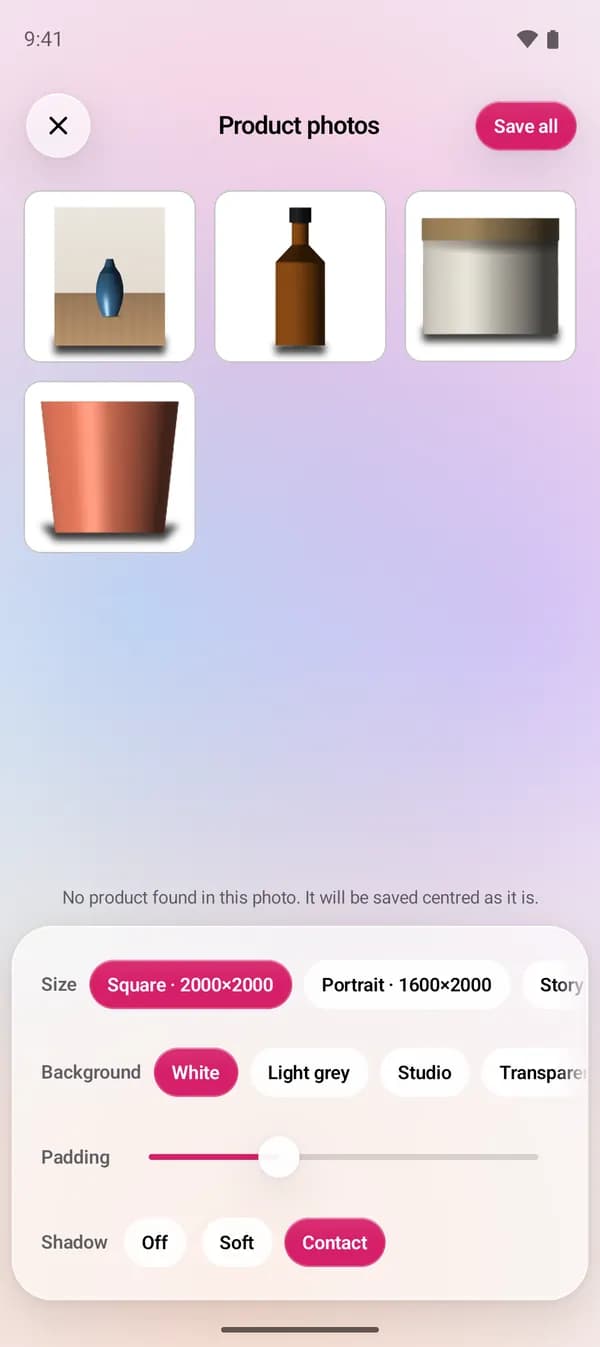
How it works
On Home, open All tools › Product photos and choose 1 to 20 photos, one product in each. Or share photos from your gallery to lamdep and tap Product photos.
Pick Square, Portrait, Story, Wide or Custom, then White, Light grey, Studio or Transparent. The previews update as you tap.
Drag Padding, choose Off, Soft or Contact under Shadow and tap Save all. The photos go to your gallery.
What you get
Same size, same margin, product centered: listings line up side by side.
A shadow under the product's base keeps it from looking pasted on.
One set of options for the whole batch, saved at full size.
The cut-out runs on the device. Your photos are not uploaded.
Shop grids look best when every product sits on the same plain background. lamdep finds the product in each photo with an on-device subject model, cuts it out and places it on pure white, or on a light grey that keeps white products from melting into the page. Each product is scaled to fit and centered.
Items photographed together are kept together and centered as one group, so shoot each product on its own when you want separate images. If lamdep finds no product in a photo, the screen tells you and that photo is saved centered as it is, not skipped.
One size applies to the whole batch, and every photo is saved at exactly that size, whatever the shape of the original. Square suits most shop grids and listings, Portrait 4:5 takes more room in a feed, Story fills a vertical screen and Wide fits a website banner. Custom takes any width and height from 200 to 4,000 pixels.
Padding sets the empty margin around the product, from 0 to 30 % (10 % to start with): less for small items that must read clearly as thumbnails, more for products that look cramped near the edge.
Studio offers 12 backdrops drawn by the app itself: wall-to-floor sweeps, two-tone horizons, radial glows, paper textures, soft bokeh lights and diagonal gradients. They are drawn at the output size, so they stay smooth at 2000 pixels.
Shadow has three settings. Contact, the default, draws a darker shadow right under the product's base, as if it stood on the surface; Soft draws a lighter one; Off leaves the product floating. The shadow follows the product's own outline, flattened at its base, and only darkens the background: the product's colors are not touched.
Choose Transparent and each product is saved as a PNG with no background, at the size and padding you set; the previews show a checkerboard where the image is see-through. Use them when your shop theme has its own background color, or on a banner later.
Transparent files carry no shadow, so the Shadow options are hidden. White, light grey and studio photos are saved as JPEG, which keeps them light to upload.
When one image deserves more care, such as the main photo of a listing, open it in the editor and go to Cutout. Its Studio mode has the same 12 backdrops, a Shadow slider from 0 to 100 and Match light, which nudges the product's brightness and color toward the backdrop so both seem lit alike. Photo mode puts the product on a picture of your own, like a counter you shot.
Cutout also has Keep and Erase brushes to fix edges by hand. Product photos has no brush, so if a batch photo comes out with a rough edge, redo that one in Cutout or reshoot it on a plainer surface.
Use cases
Ten items shot on the kitchen table, one batch on White and Square, one consistent set.
Candles, ceramics or jewelry on a Studio backdrop with a Soft shadow, warmer than plain white.
Story 9:16 for a restock, posted to Instagram Stories or WhatsApp Status.
Transparent PNGs of each product, ready to drop onto a flyer, a menu or a price list.
Guide
Shoot near a window in daylight, with a white card opposite the window to soften shadows, and skip the flash, which puts hard glare on glossy packaging. Set the product on a plain surface with room around it, and curve a large sheet of paper up behind it so there is no line where table meets wall.
Shoot boxes and bottles straight on, flat items slightly from above, and tap to focus on the product so its edges are sharp. Clear glass, thin wires and white products on white paper are the hardest to cut out: shoot them on a contrasting surface, and pick Light grey so a white product keeps visible edges.
Privacy
Everything in Product photos runs on the phone: the cut-out, the layout, the backdrops, the shadow and the saving. The cut-out uses an on-device model that Google Play services installs with the app. Your photos are not uploaded to lamdep or anywhere else.
Finished images are saved to your phone's gallery, in the lamdep album; your originals are not changed. Uploading them to your shop is up to you.
Questions
lamdep is free to download. Product photos uses the same cut-out as the Cutout tool, part of lamdep Pro, so each saved photo counts as a Pro save. Without Pro you get a few free Pro saves each week; when they run out, the batch stops and the Pro offer opens.
1 to 20 per batch. For more, run another batch.
Square 2000 × 2000, Portrait 4:5 (1600 × 2000), Story 9:16 (1080 × 1920), Wide 16:9 (1920 × 1080) or Custom, from 200 to 4,000 pixels per side.
Yes. Choose Transparent and each photo is saved as a PNG, without background or shadow.
The screen says so, and that photo is saved centered as it is. Reshooting it on a plainer surface usually helps.
Not inside Product photos. Open that photo in the editor, go to Cutout and use the Keep and Erase brushes.
No. The cut-out, layout and saving all happen on your phone, and nothing is uploaded.
Clean cutouts, new colors or blur
Erase people, text and clutter, with optional AI fill
Free to download for iPhone and Android. Pro tools and AI credits are optional.