Auto captions
Styled captions from speech, on your phone
Title card
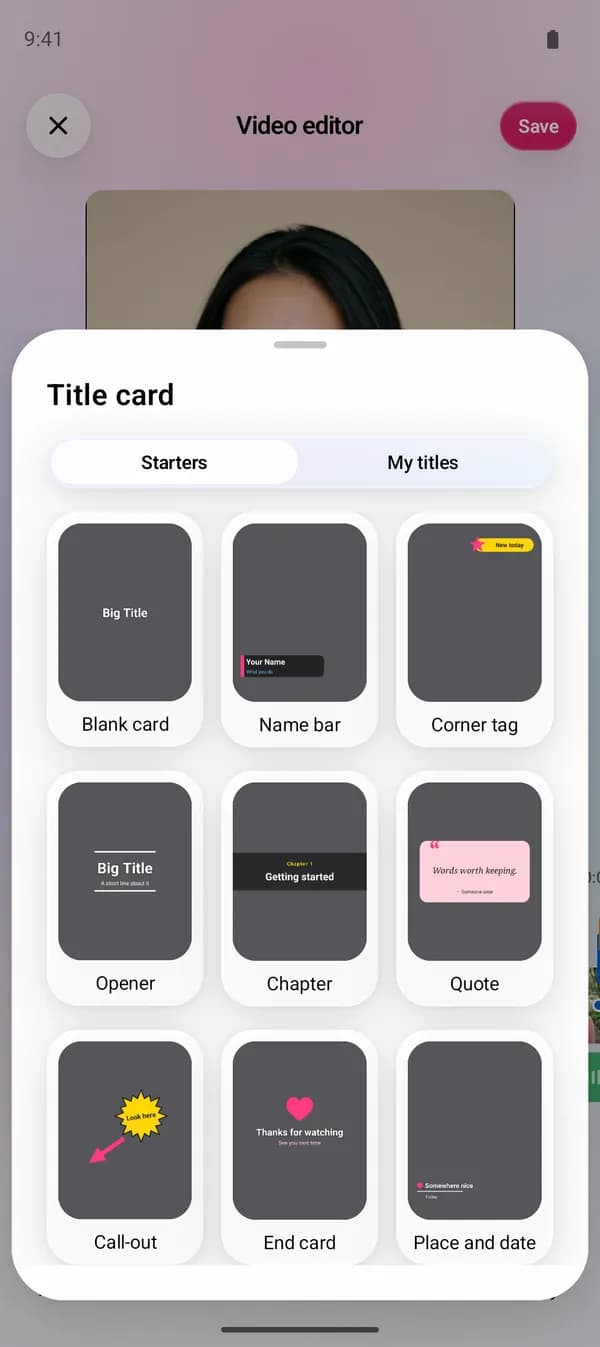
Put a designed title over any moment of your video: an opener, a name bar for an interview, a chapter break or a thank-you at the end. Start from eight starter cards or a blank one, change the words and colours, and animate each layer.


Where to find it: Android: lamdep on Google PlayiPhone: lamdep on the App Store
How it works
In the Video editor, move the playhead to where the title should start and, with no clip selected, tap Title card, right after Text.
Choose Blank card, a Starter or one of My titles. Tap a layer to change its words and Style, then set Animation and Timing.
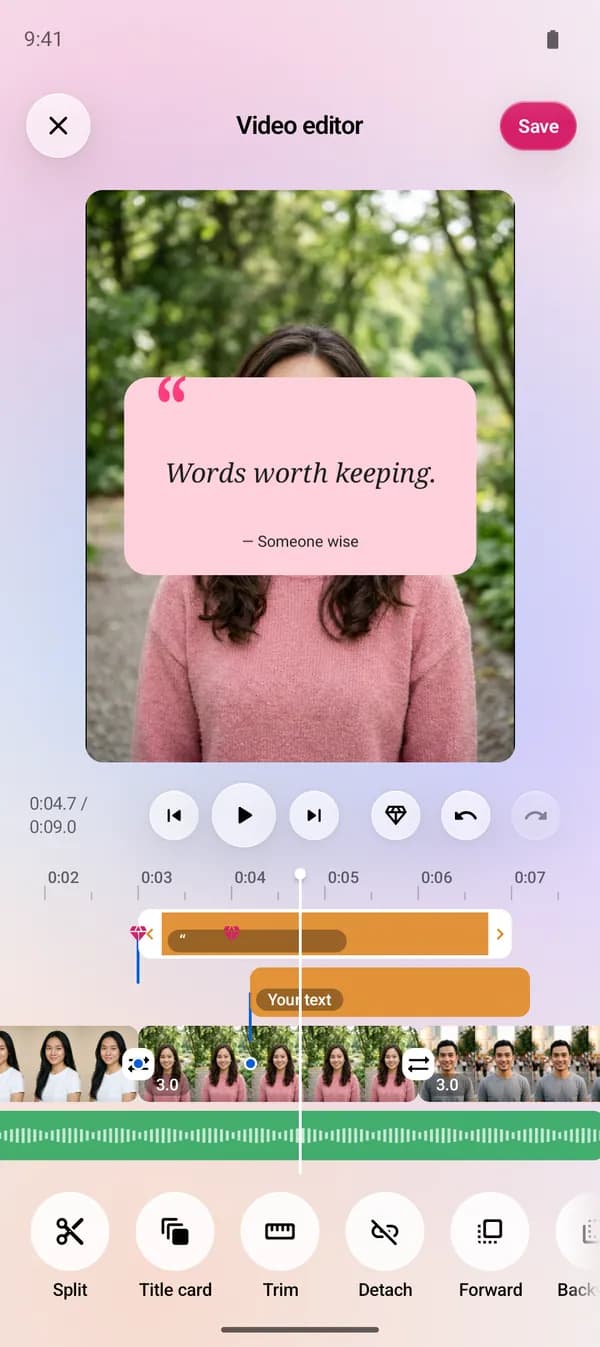
Tap Done, then move or trim the card on the timeline like any clip. Save to My titles keeps the design for later.
What you get
Eight starter cards come with their own shapes, colours and motion.
Each text, shape or image has its own entrance, exit and timing.
The editor draws the card with the same renderer as the exported video.
Saved titles keep their layers, length and keyframes for the next project.
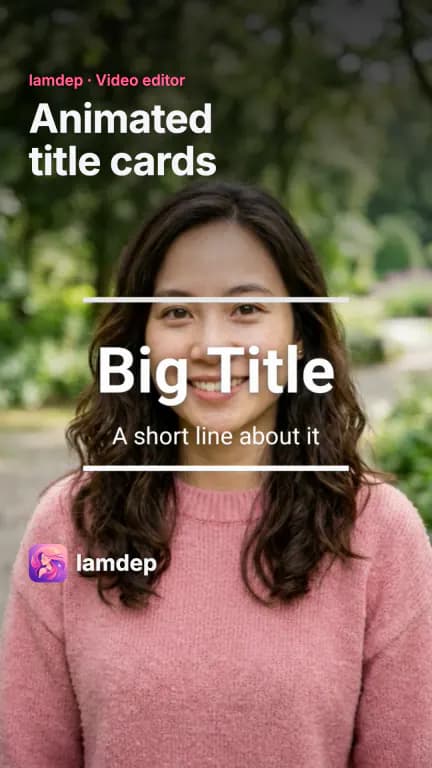
The Opener starter is a classic intro: a big centred title between two thin white rules, with a smaller line that fades in a moment later. Chapter lays a translucent dark band across the frame with a small yellow label over the chapter's name, a clean break in a tutorial or vlog. Cards scale to 9:16, square and 16:9 projects.
For the outro, End card drops a pink heart in over “Thanks for watching” and “See you next time”. Rewrite them into what viewers should do next: follow, subscribe or visit the shop. A new card lasts 4 seconds; drag its end to change that.
A lower third is the label low in the frame that tells viewers who is speaking. The Name bar starter is exactly that: a dark rounded bar on the left with a pink edge, the name on top and a line for the role underneath, each fading or sliding in after the bar. Type a name and job, and it is ready.
Corner tag is a yellow pill in the top-right corner with a pink star, good for “New today”, a price or an episode number. Place and date puts a pink dot, a place name that types itself in, a thin rule and a date low on the left.
Every card is a stack of up to 16 layers. Under Layers, Add text, Add shape and Add image put a new one on the card; an image comes from Photos or from a photo in this project. Reorder or delete layers, drag one on the preview to place it and pinch to resize it.
Style sets the look of the selected layer. Text has four font styles, ten colours, bold, alignment, a background box, a size from 12 to 300 and a width for line wrapping. Shapes come in 12 kinds, from rectangles and stars to arrows and speech bubbles, with Fill, Outline, Outline width and Corners.
Under Animation, each layer gets its own In and Out, from 0.1 to 3 seconds long. Entrances include Fade, Slide up, Pop, Zoom, Bounce and Drop, plus Typewriter for text, which reveals the words letter by letter. Timing staggers layers inside the card: Appears at delays a layer, Leaves before the end takes it away early, so the bar arrives first and the words follow.
For more motion, Style has keyframe diamonds next to Position, Size, Rotation and Opacity. Set a value at one moment, tap the diamond, then do the same later: the layer moves, grows, turns or fades between the two. Hold a diamond to pick the ease. The card's own Title card tool reopens the editor later.
Use cases
A Name bar with each guest's name and role the first time they speak.
A Chapter card before every step, so viewers can follow along.
A Corner tag for “New today” and a Call-out burst with an arrow pointing at the product.
Place and date over the first shot of each stop, typed in like a diary.
One End card with your follow prompt, saved to My titles and reused on every upload.
Guide
Most videos are watched small, on a phone. Keep the main line short (three to six words) and large, and a second line at least half its size. On busy footage, put a bar, a background box or a shadow behind white text. Keep clear of the edges: on Reels, TikTok and Shorts, buttons and captions cover the bottom and right side, so sit a lower third a little higher than on a 16:9 video.
Leave a title up long enough to read twice: about one second per three words, plus one. A name bar is comfortable at 3 to 5 seconds, an opener at 2 to 4. Short entrances (0.3 to 0.6 seconds) feel crisp; long ones make viewers wait for the words.
Use one font pair per video, bold for titles and plain for second lines, and the same colours and position for every name bar. Once a card looks right, Save to My titles, so the next video starts from your own design.
Pick a starter, watch it animate over your clip, then make it yours. This Short shows the Quote, Opener and Chapter cards on a real timeline: each card keeps its text, style and animation editable until you export, and then it is part of the video.
Privacy
Title cards are built and drawn on your phone by the engine that plays and exports your video: no credits, no cloud processing, and the tool uploads none of your text or images. Images you add are copied into the project.
My titles live in the app's storage on your phone and appear in every project. Renaming or deleting a saved title changes only My titles: videos that already use it keep their card.
Questions
In the Video editor: with no clip selected, tap Title card, right after Text.
Yes. lamdep is free to download, and title cards are part of its free video editor with no Pro lock.
Yes. Choose Blank card, add your own text, shapes and images, then save it to My titles.
Trim the card's clip on the timeline. Timing sets when each layer appears and leaves inside it.
Yes. Position, Size, Rotation and Opacity have keyframe diamonds, on top of In and Out.
In Title card › My titles, use the … menu on the card. Videos that already use it keep it.
No. Title cards are titles you write; auto captions turn speech into subtitles with their own tool.
Styled captions from speech, on your phone
Animate any slider with keyframes, eases and paths
40 transitions between clips, previewed on your own footage
Add text, stickers, doodles and frames
Free to download for iPhone and Android. Pro tools and AI credits are optional.