
Video editor
Multi-track timeline, effects and video beauty
Keyframes
Set a value at one moment and another a little later, and lamdep animates everything in between. Zoom, position, color, masks, text and volume all take keyframes, with smooth eases, a Bézier curve editor and a motion path you bend with your finger.


Where to find it: Android: lamdep on Google PlayiPhone: lamdep on the App Store
How it works
Open Video editor, add your clips and tap the one to animate. Put the playhead where the motion starts and tap the Keyframe diamond in the transport row, or the diamond at the end of a slider.
Go to where the motion should end. Drag the clip on the preview or move the slider: once a row is animated, the change becomes a keyframe under the playhead.
Hold a diamond to choose Linear, Smooth in, Smooth out, Smooth, Hold or Curve. Play it back, then tap Save and Export.
What you get
Color, filters, effects, keyer, mask, text, opacity and volume all take keyframes.
Eases and Bézier handles give every start and stop some weight.
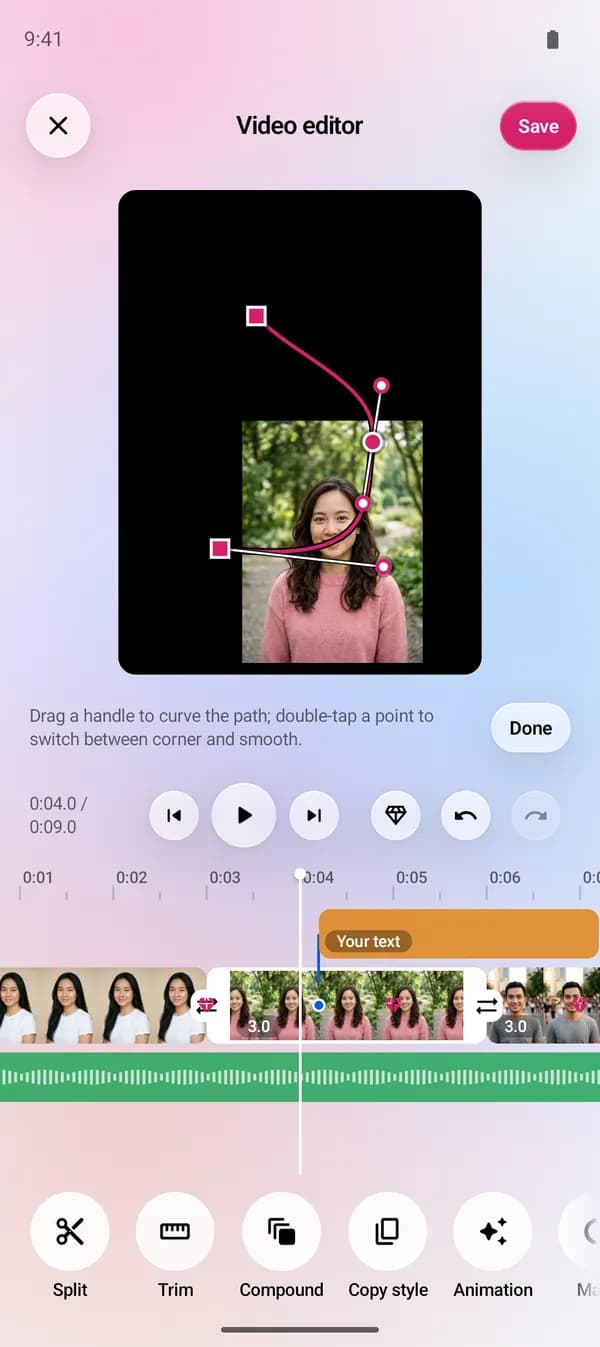
Bend the route between position keyframes right on the preview.
Every change is one undo step, and trims keep keyframes on the same frames.
Select a clip and open a panel: every slider that can change over time ends with a diamond. Tap it to record a keyframe at the playhead with the slider’s value; tap a filled diamond to remove it. Once a row has keyframes, ‹ and › beside the diamond jump to the previous or next one.
On an animated row, moving the slider no longer changes the whole clip: it sets the keyframe under the playhead, or adds one there. Text color has its own diamond next to the swatches, and colors blend in linear light, so a color fade stays clean instead of passing through a muddy middle.
An ease decides how a value travels to the next keyframe, and it belongs to the keyframe where the move starts. Hold a filled diamond to pick one: Linear moves at a steady rate, Smooth in starts slowly, Smooth out slows down as it arrives, Smooth does both, and Hold keeps the value still, then jumps.
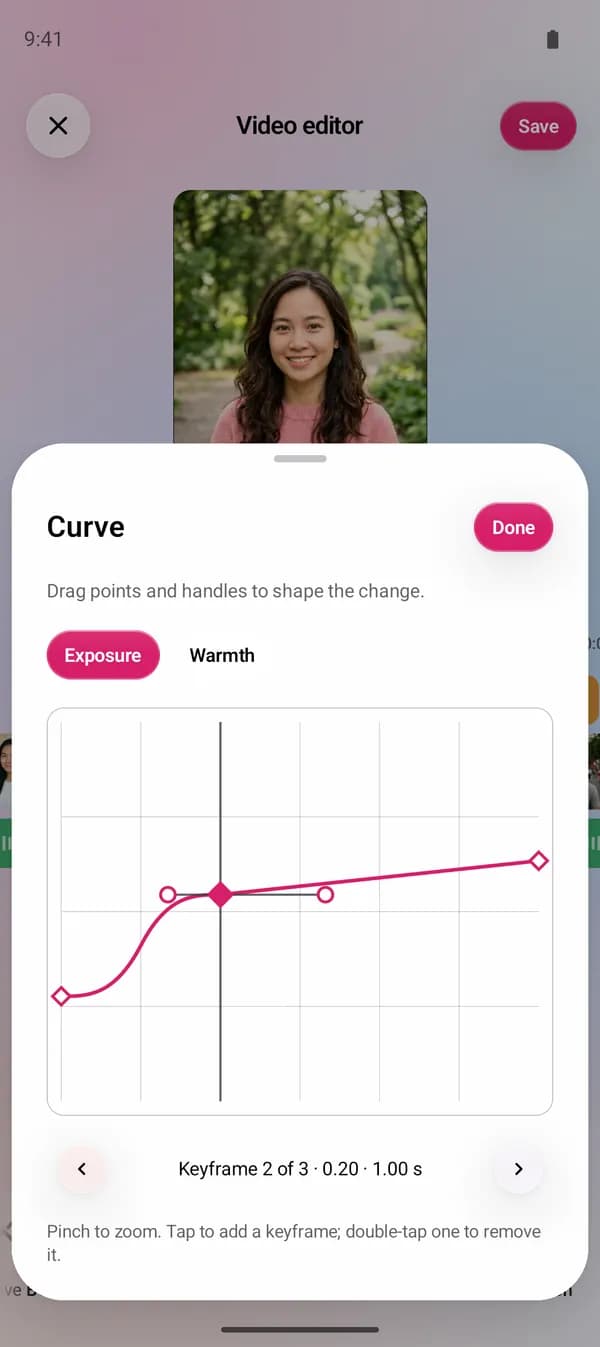
Curve opens the keyframe graph: the value over the clip’s time, each keyframe a point. Drag a point to change its value and time (it snaps to frames), drag its Bézier handles to shape the curve, tap empty space to add a keyframe, double-tap one to remove it, and pinch to zoom up to 16×. Chips switch between the clip’s animated properties.
The Keyframe diamond in the transport row records position, size, rotation and opacity together (on an audio clip, volume). Add one at the start, move the playhead, drag the clip elsewhere on the preview and lamdep adds the next keyframe. To zoom, open Curve, choose the Scale chip and drag the second keyframe up.
With two or more position keyframes, hold the transport diamond and choose Path. The route appears over the paused preview: drag a point to move it, drag a handle to curve the path, double-tap a point to switch between Corner and Smooth. The clip travels by distance, so it does not speed up or slow down on the bends.
Volume keyframes turn a clip’s level into an envelope from 0 to 200 %. Put two keyframes before a spoken line and two after it, lower the middle pair, and the music dips under the voice and comes back.
Copy style and Paste style carry keyframes too, per group: Color, Volume, Position & size (with the path’s curves) and Blend & opacity, at the same offsets in the target clip. Keyframes live on the footage’s own time, so trimming or splitting keeps them on the same moment.
Use cases
Two keyframes and a gentle Scale change turn a travel photo into a calm push-in.
Start the text off to one side and key it into place with Smooth out.
Dip the song while someone talks in a vlog or shop video, then bring it back.
Raise Exposure as a door opens, or warm the colors as the sun sets.
Send a half-size overlay clip along a curved path across the frame.
Guide
Use as few keyframes as the move needs: two or three, shaped with an ease, look smoother than ten placed by hand. Smooth out suits something arriving, Smooth in something leaving, Smooth a move that starts and ends at rest. Keep Linear for mechanical motion and Hold for deliberate jumps on the beat.
For a slow photo zoom, 5 to 15 % over several seconds feels cinematic; more feels rushed. Keep faces inside the frame at both ends. A title needs half a second to a second to slide in, then long enough on screen to read twice. Music fades of one to two seconds sound natural.
Check the motion at full speed, not only while scrubbing: a sharp kink in the graph is a jolt on screen. If a move feels late, drag its keyframe a few frames earlier rather than adding new ones.
This Short puts three video editor tools together. The transition sheet previews each effect on your own clips; a keyframe curve shapes how exposure or warmth changes over time; and a motion path, bent with a finger, makes a clip glide along a curve. Everything plays back in the editor before you export.
Privacy
Keyframes, eases, the graph and the motion path are calculated by lamdep’s own engine on your phone, the one that renders the preview and the export. Nothing is uploaded or downloaded to animate a clip, and no face or body is reshaped: keyframes only move, scale, rotate, fade and recolor what you filmed.
Keyframes are saved with the project in the app’s own storage on the device. When you export, the video is saved to Movies/lamdep on your phone, and you decide where it goes next.
Questions
lamdep is free to download, and the keyframe diamonds, eases, graph and motion path carry no Pro lock of their own in the video editor.
Use ‹ › to land on it and tap the filled diamond, or double-tap the point in the keyframe graph.
The playhead is outside the selected clip. Move it over the clip and the diamond works again.
Yes. Photo clips take keyframes for position, size, rotation, opacity and color, which is how you make a slow zoom on a still.
Position, size, rotation and opacity at the playhead, or volume on an audio clip. Slider diamonds record their own rows.
They stay on the same moment of the footage, including their curves and path handles.
Yes. Each tap, slider release and gesture in the graph or on the path is one undo step.
Multi-track timeline, effects and video beauty
Animated intros, name bars and end cards for video
40 transitions between clips, previewed on your own footage
Free to download for iPhone and Android. Pro tools and AI credits are optional.